nano-banana.com has evolved into EIMG AI, now at eimg.ai. Your account, credits, and creations are all here—bookmark our new address so you can always find us.

EIMG AI logoEIMG AI
  • Nano Banana 2NEW
  • Nano Banana Pro
  • My Creations
Upgrade Now
EIMG AI logoEIMG AI
Create New
Navigation
  • Home
  • AI Generator
  • MAGI-2New
  • Veo 3.1
  • MiniMax H3 MaxNew
  • MiniMax H3New
  • Seedance 2.5New
  • Seedance 2.0
  • Gemini Omni
  • Sora 2
  • Text to Video
  • Image to Video
  • Reference to Video
  • LoRAHot
  • Explore
  • Projects
  • API

MAGI-2 AI Video Generator

Text to video, image to video and reference to video with sound, in 4–30 second clips at 1080p.

MAGI-2 settings
Every clip renders at 1080p. Length, ratio and audio are up to you.

Describe the scene, action, camera and sound. No uploads needed.

0/15000
Try:
5 s
4s30s
Resolution1080p
Estimated cost165 credits33 credits per second
Preview
My Creations

Your MAGI-2 video appears here

Write the scene as a short script: what is seen, what is heard and when. Longer clips take a few minutes.

  • 4–30 sLength per clip
  • Native audioDialogue, effects, ambience
  • 20 filesImages, video and audio
  • 1080pSix aspect ratios

Long takes with sound

Direct a whole scene, with its sound, in one MAGI-2 take

MAGI-2 generates up to 30 seconds of 1080p video, with dialogue, effects and ambience created alongside the picture. Write the scene, add frames or references if you have them, and set the length to the second.

Create with MAGI-2See how it works
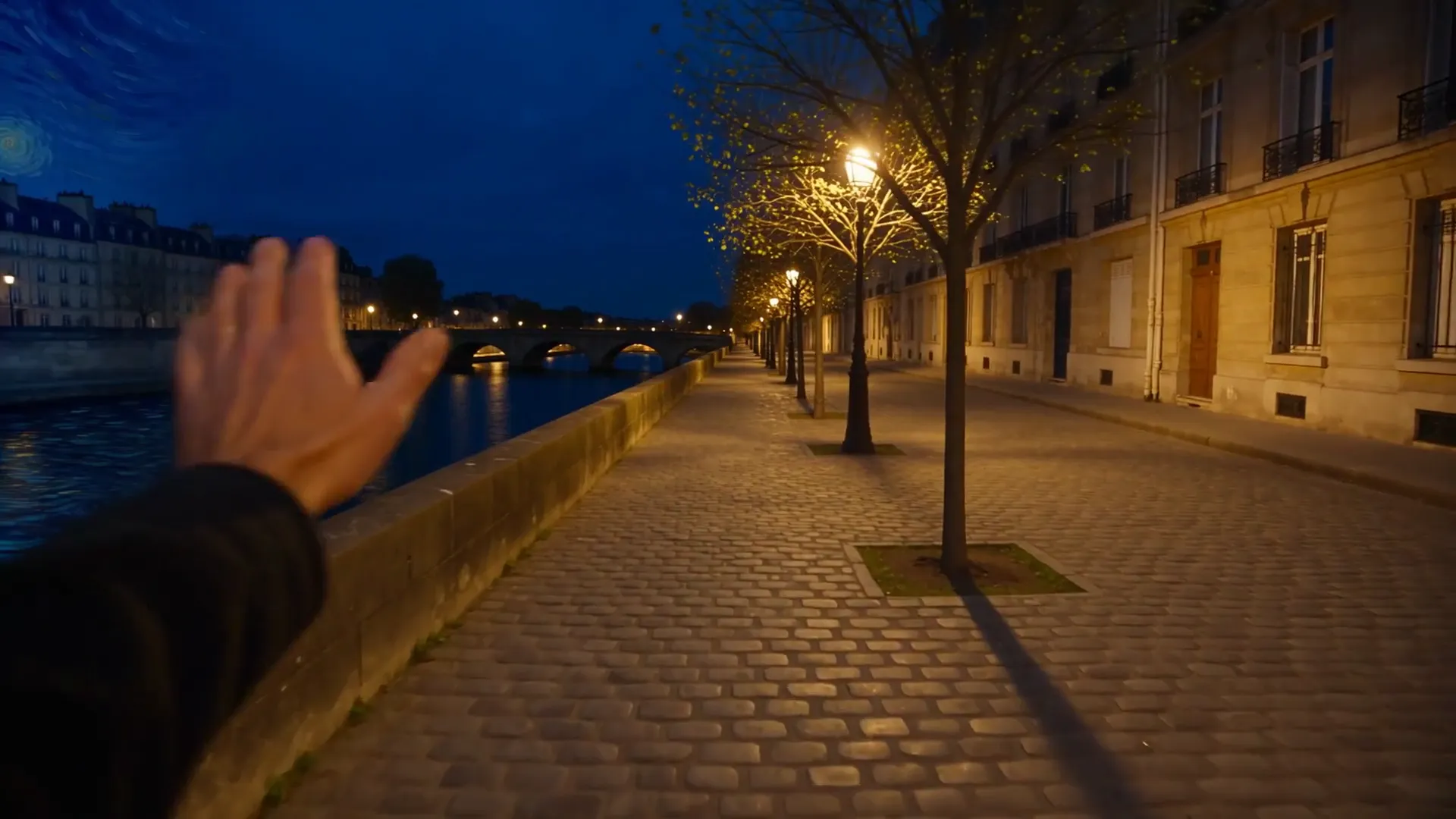
First-person view of a hand reaching out on a riverside promenade as the scene turns into painted styles
Frame from a MAGI-2 sample · a riverside walk that moves through painting styles in one take
Length, chosen by the second
4–30 s
Length, chosen by the second
Output in six aspect ratios
1080p
Output in six aspect ratios
Reference files per video
20
Reference files per video

Model overview

What is MAGI-2?

MAGI-2 is an AI video generation model that creates up to 30 seconds of 1080p footage and its soundtrack together, from a text prompt, start and end frames, or a mix of image, video and audio references.

Sound is generated with the image rather than laid on afterwards, so a spoken line, a door closing or the hum of a room lands on the frame where it happens. The longer clip length matters most for scenes that need time to develop, such as a camera move that keeps travelling, a two-person conversation, or a product shown from reveal to use.

Text to videoFirst and last frame to videoReference to videoMy Creations

A much larger successor to MAGI-2 Preview

MAGI-2 has 480 billion total parameters, with about 28 billion active for each token, compared with roughly 114 billion in the earlier Preview release. Its pre-training corpus also grew about threefold, to around 4 trillion tokens.
One stream for words, pictures and sound

Instead of handling picture and audio in separate models, MAGI-2 places text, video and audio tokens in a single sequence. Motion, mouth shapes and the acoustics of a space therefore evolve together over a long take.

Capabilities

Five MAGI-2 capabilities in practice

Each image below is a frame from a published MAGI-2 sample, chosen to illustrate one capability.

Up to 30 s

Up to 30 seconds in one generation

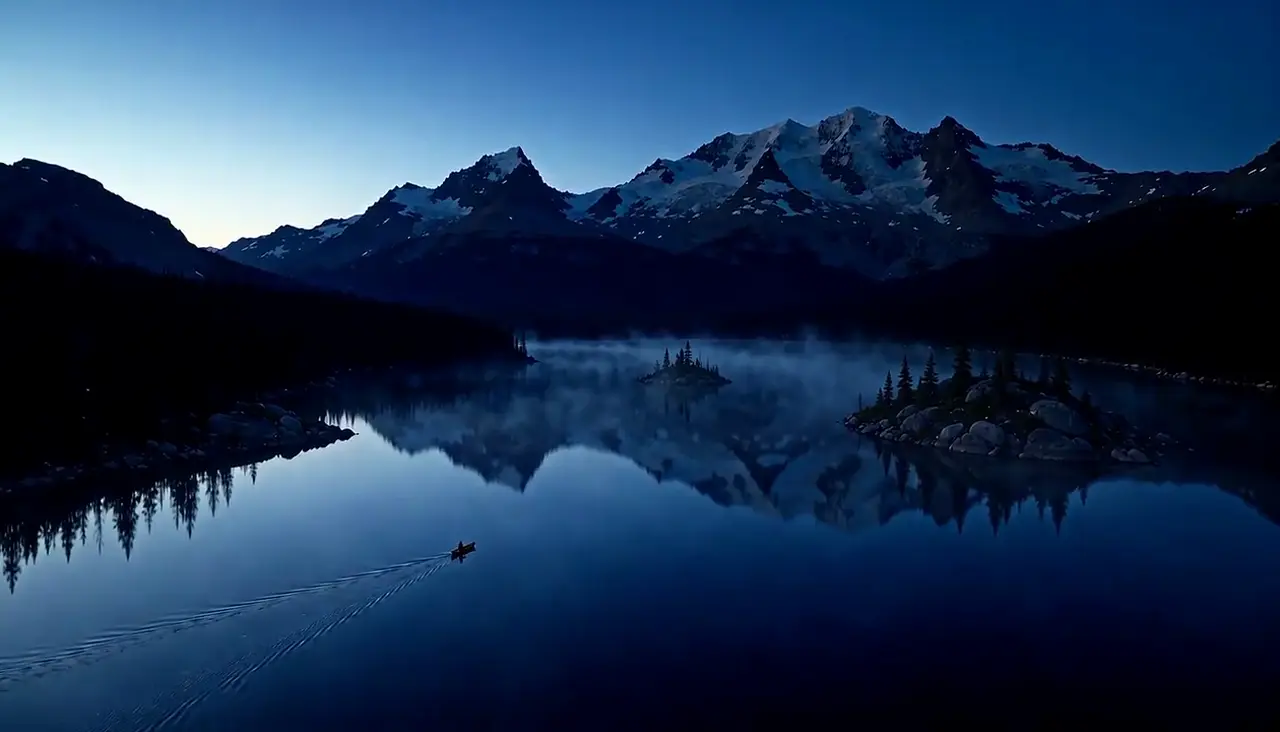
A single MAGI-2 generation can run for 30 seconds while the subject, location and lighting stay consistent. The sample shown here follows a mountain lake from pre-dawn blue to sunrise; on EIMG you can stop at any whole second from 4 up.

Mountain lake reflecting snow-capped peaks as the light shifts from blue dawn to golden sunrise, with a person paddling a canoe
Frame from a MAGI-2 sample · an alpine lake from first light to sunrise in one 30-second generation
Native audio

Synchronized dialogue, effects and ambience

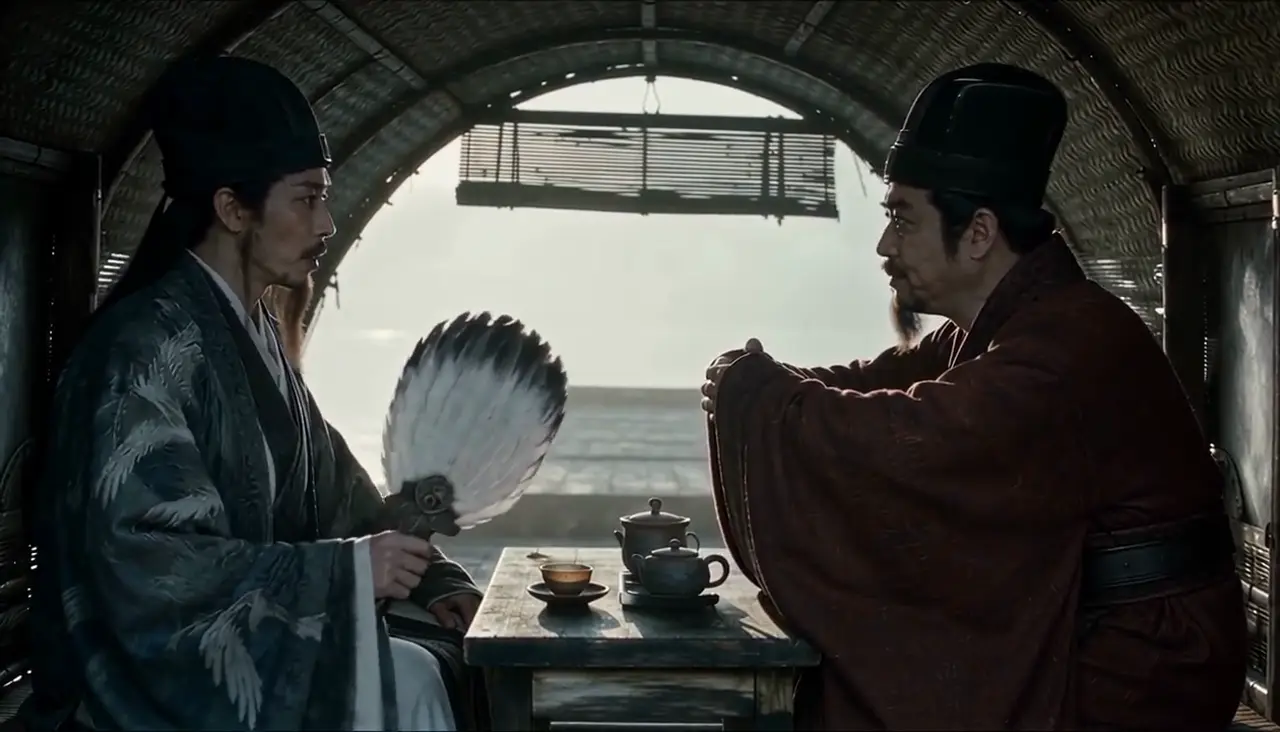
MAGI-2 produces speech with matching lip movement, foley, ambient sound and music in the same pass as the image, so the soundtrack is timed to the action from the first render. Write a character's line in quotation marks and it is spoken in the scene.

Two men in classical Chinese robes talk across a tea table inside a boat cabin, one holding a feather fan
Frame from a MAGI-2 sample · a conversation over tea in a boat cabin
20 references

Omni-reference with images, video and audio

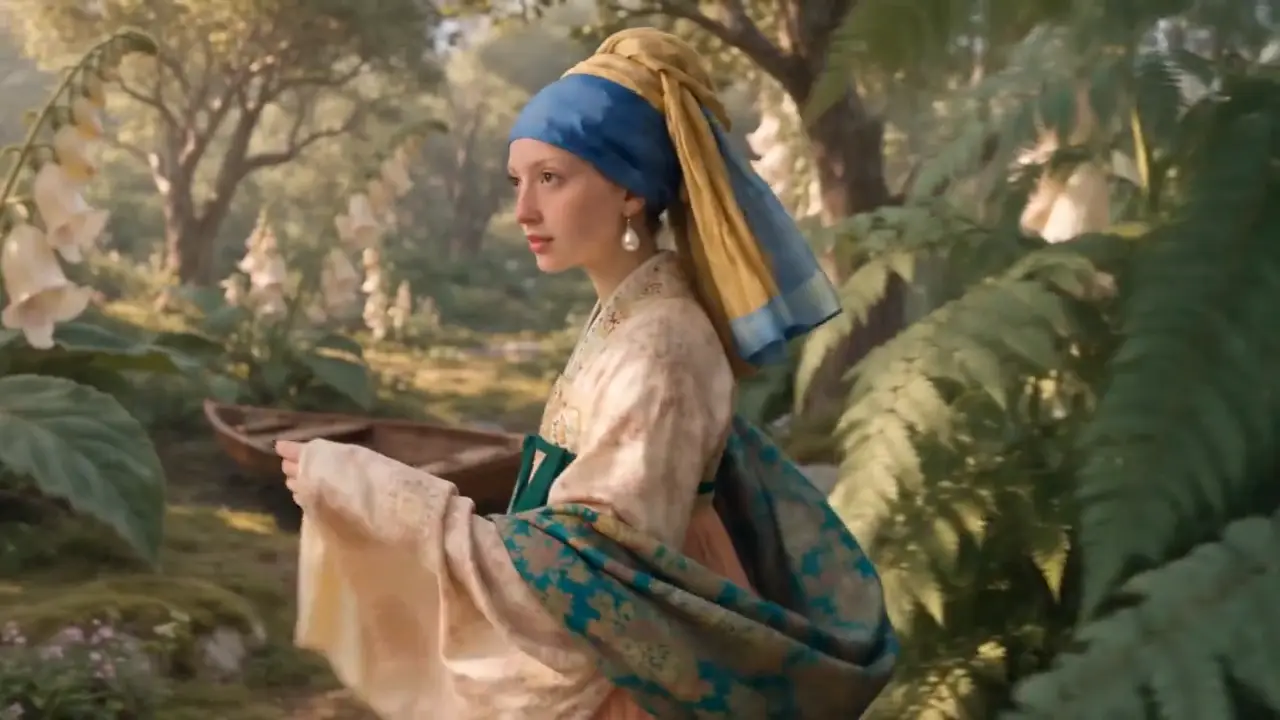
One request can combine up to 10 images, 5 video clips and 5 audio clips. Images fix faces, costumes and places, videos suggest motion and camera work, and audio sets a voice or the character of a sound, so a person stays recognizable while the scenery changes around them.

A woman in a blue and gold head wrap and an embroidered robe stands in a forest of oversized flowers
Frame from a MAGI-2 sample · one character carried through three giant-flower settings by reference images
Timed cuts

Timeline and shot-cut direction in the prompt

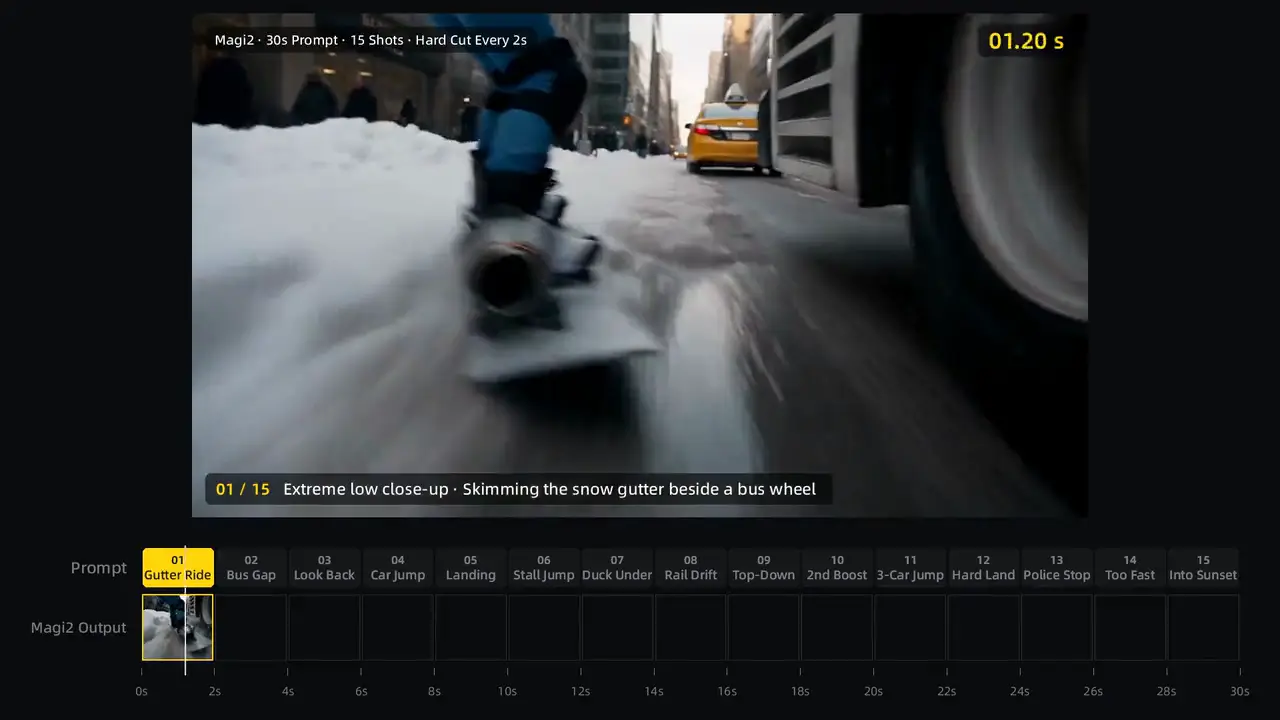
MAGI-2 follows script-style timing for when each shot starts, how long it lasts and where it cuts. Write time ranges such as "0–6 s" in the prompt to place the cuts, or describe only the story and leave the camera angles to MAGI-2.

A woman rides a snowboard down a snowy city street ahead of police cars, with a 15-shot timeline shown beneath the frame
Frame from a MAGI-2 sample · a 30-second chase cut into 15 shots, one every two seconds
1080p detail

Sharper faces, text and texture at 1080p

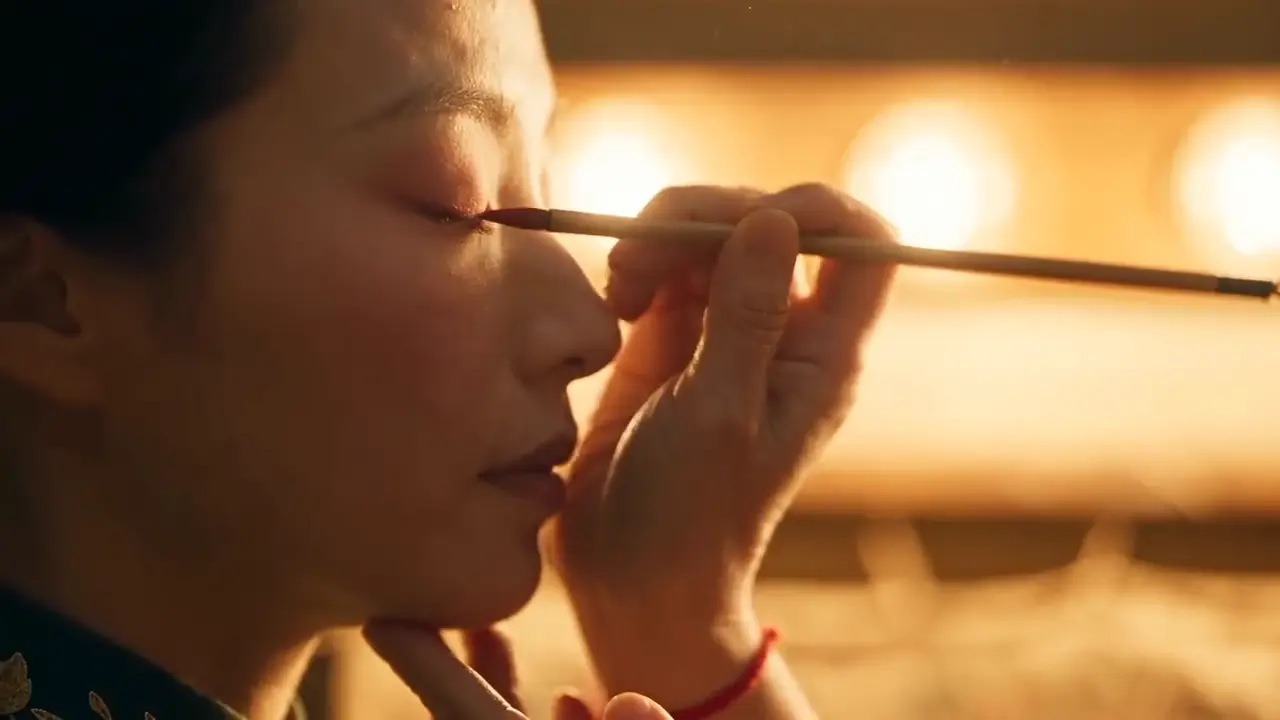
MAGI-2's 1080p output comes from an upscaling pass that consults the original reference images a second time and draws on them when rebuilding fine detail, which keeps small faces closer to the reference and printed text easier to read. Reinforcement-learning post-training was aimed at lighting depth, micro-texture, fur and materials, the qualities a close-up like this one depends on.

A performer in an embroidered green dress paints her eye makeup with a fine brush in front of a warmly lit backstage mirror
Frame from a MAGI-2 sample · backstage makeup in close-up under warm bulbs

Reference set

Build a MAGI-2 reference set before you generate

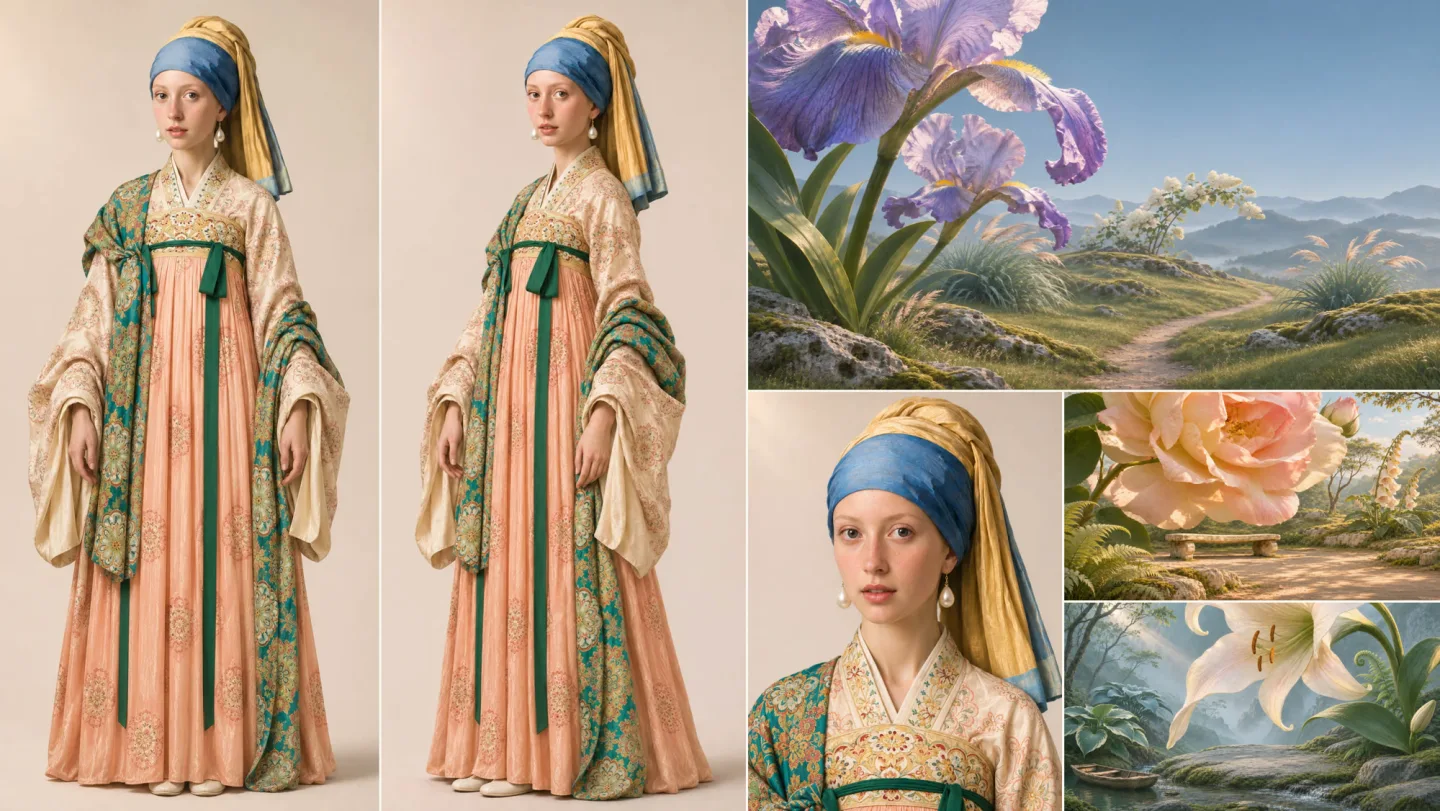
Separate images for the character and for each place keep a person recognizable while the scenery changes.

The sheet shown here pairs two views of one character, full length and portrait, with three landscapes, one for each setting the clip passes through. That split works well for your own projects. Let the character images carry identity: a clear face, the whole costume and a plain background. Let the location images carry place and light. Then write the prompt as a sequence that names which setting each part of the clip moves through and what the character does there. The face and costume come from the same images in every part of the clip, so they hold steady while the scenery around them changes. The same pattern works for a product, a mascot or a recurring set, and a short reference video can be added when the motion itself needs to match.

Reference sheet: full-length and portrait views of a woman in a blue and gold head wrap and embroidered robe, with iris, rose and lily landscapes
Reference sheet for a MAGI-2 sample · one character and three flower landscapes

How to use

Create a MAGI-2 video on EIMG

Four steps in the workspace above, from choosing an input to finding the finished clip.

  1. 1

    Choose a mode

    Pick text-to-video, image-to-video with a first frame and an optional last frame, or reference mode for images, video and audio. The mode decides which upload slots appear.

  2. 2

    Write the prompt and add media

    Describe the scene, the action, the camera and what should be heard, in up to 15,000 characters. Upload frames or reference files if your mode uses them.

  3. 3

    Set length, ratio and audio

    Choose a length from 4 to 30 seconds, an aspect ratio and whether to include audio. The credit estimate updates as you change the length.

  4. 4

    Generate and check My Creations

    Generation can take several minutes. The video appears in the workspace and is saved under the MAGI-2 Video tab in My Creations; if a run fails, its credits come back automatically.

Comparison

Compare MAGI-2 with other video models

Limits shown are the options each model's workspace offers on EIMG.

Compare MAGI-2 with other video models
FeatureMAGI-2Seedance 2.0MiniMax H3Gemini Omni 1.2 Flash
Clip length4–30 s4–15 s4–15 s3–15 s
Output resolution1080p480p, 720p, 1080p or 4K768P or 2K360p, 720p, 1080p or 4K
Aspect ratios16:9, 9:16, 1:1, 4:3, 3:4, 21:9Same six, plus adaptiveSame six16:9 or 9:16
Reference inputsUp to 10 images, 5 videos, 5 audio clipsUp to 9 images, 3 videos, 3 audio clipsUp to 9 images, 3 videos, 3 audio clipsUp to 10 images
Native audioYes, can be switched offYes, can be switched offYesYes

Prompt guide

How to write a MAGI-2 prompt

MAGI-2 reads a prompt like a short script. The more clearly it states what is seen and heard at each moment, the less the model has to guess.

Scene

Subject and setting

Name who or what is on screen, where they are, the time of day and the light. If you upload reference images, keep the written description of a character consistent with them.

Action

Action in timed beats

Give each stretch of a long clip its own time range, for example 0–8 s for the setup and 8–16 s for the turn. Very fast motion is the hardest thing to keep continuous over a long take, so give quick action a short beat of its own.

Camera

Framing and cuts

Describe shot size and movement in plain words: close-up, slow push-in, handheld follow. Write "hard cut to…" at the second, or after the action, where the next shot should begin.

Sound

Dialogue and sound

Put spoken lines in quotation marks and say who speaks them. List the effects and ambience you want to hear, or turn audio off if the clip will be scored later.

References

Give each reference a job

State in the prompt what each upload should control: a face, a room, a camera move or a voice. References steer the result rather than being cut into it.

Example: a 20-second scene with dialogue

Time ranges, a marked cut, a quoted line and named sounds give MAGI-2 a complete plan. Try it at 20 seconds and 16:9 with audio on.

A small ramen shop at night, steam drifting under warm paper lanterns, rain streaking the window. 0–7 s: slow push-in from the doorway toward the counter, where the cook, a man in his sixties with a white headband, ladles broth into a bowl. Sounds: rain on the awning, a simmering pot, a radio playing quietly. 7–14 s: hard cut to a medium close-up of a young courier at the counter, pulling his wet hood down. He smiles and says, "Same as always, please." The cook nods without looking up. 14–20 s: overhead shot as the bowl is set in front of him, steam rising into the lantern light, chopsticks clicking while the rain keeps falling.

Use cases

What to make with MAGI-2

Projects that benefit from longer takes, consistent characters and sound in the first render.

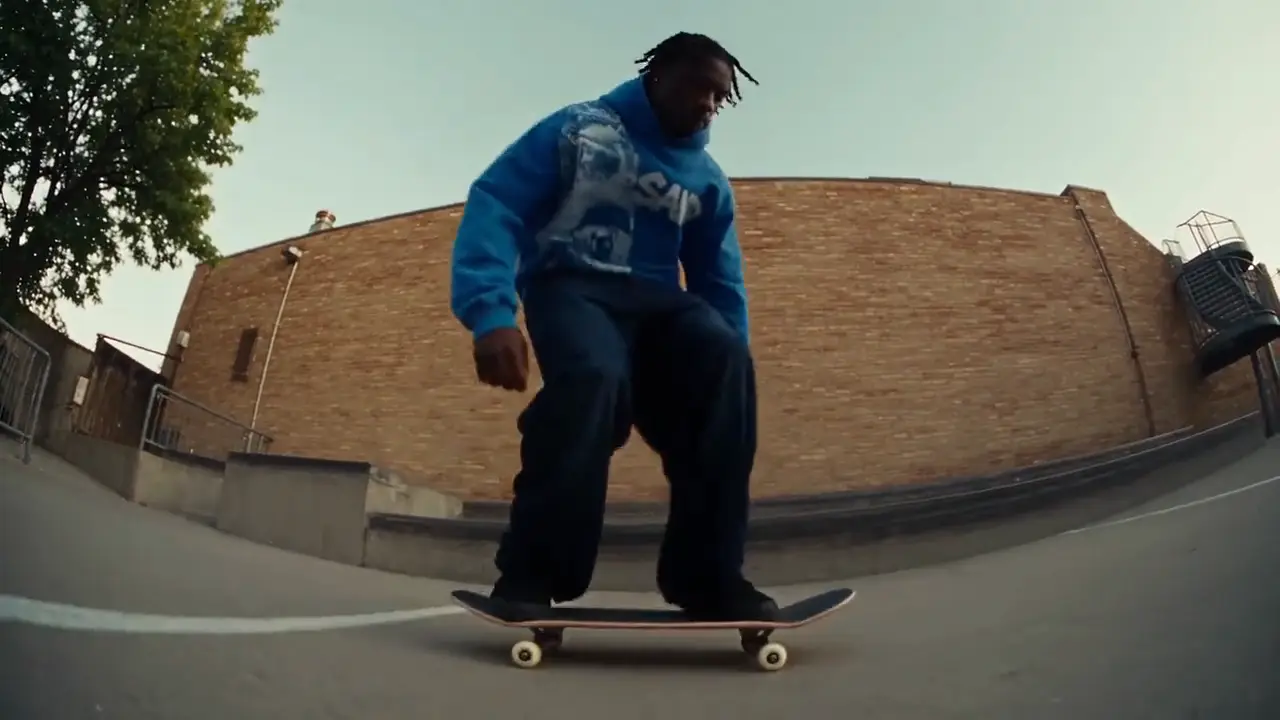
Streetwear spot: a skateboarder in a blue graphic hoodie filmed from a low fisheye angle in front of a brick wall

Commercials and product demos

A product film usually needs a reveal, a demonstration and a closing shot, and a 30-second MAGI-2 clip can hold all three with music and effects included. Product photos uploaded as references help keep packaging and colors consistent from shot to shot.

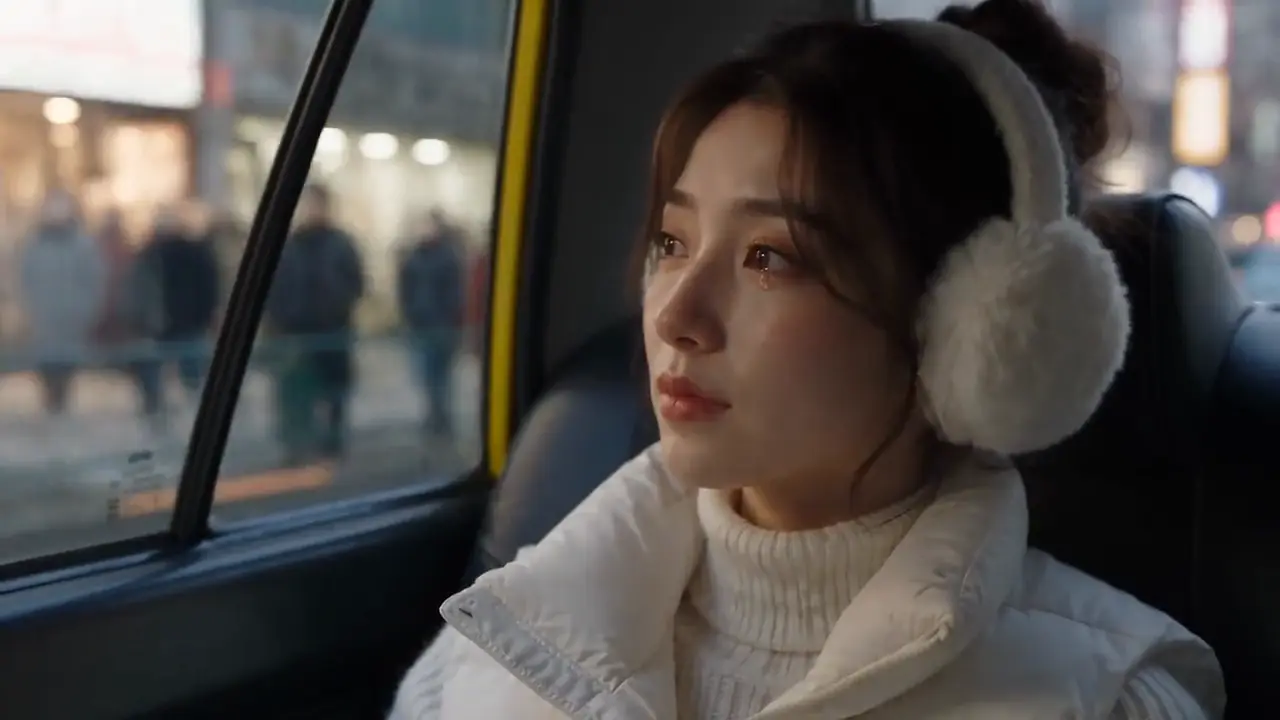
A young woman in white earmuffs sits in a taxi looking out at a busy street as her expression turns tearful

Dialogue scenes and short drama

Write each line in quotes and describe how the other character reacts; MAGI-2 renders the performance and the voices together, down to a glance away or welling tears. Keeping a short exchange inside one clip avoids matching faces and audio across separate generations.

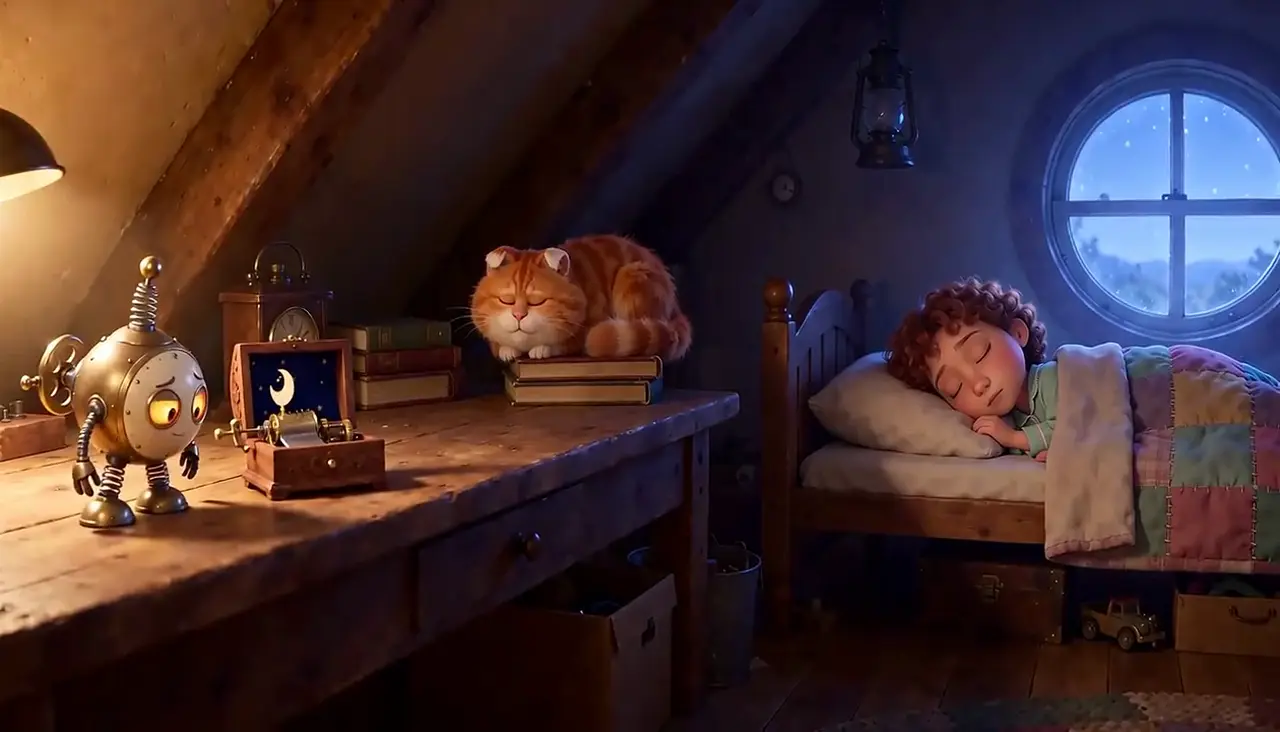
3D-animated attic bedroom at night with a sleeping child, a ginger cat on a stack of books and a small brass robot on the desk

Stylized and 3D animation

Reference images of a character model or a set give an animated short a fixed cast and location, whether the scene is a quiet bedtime moment or a chase. In 2D styles, medium and wide shots can look too smooth in fine movement, so closer framing is the safer choice.

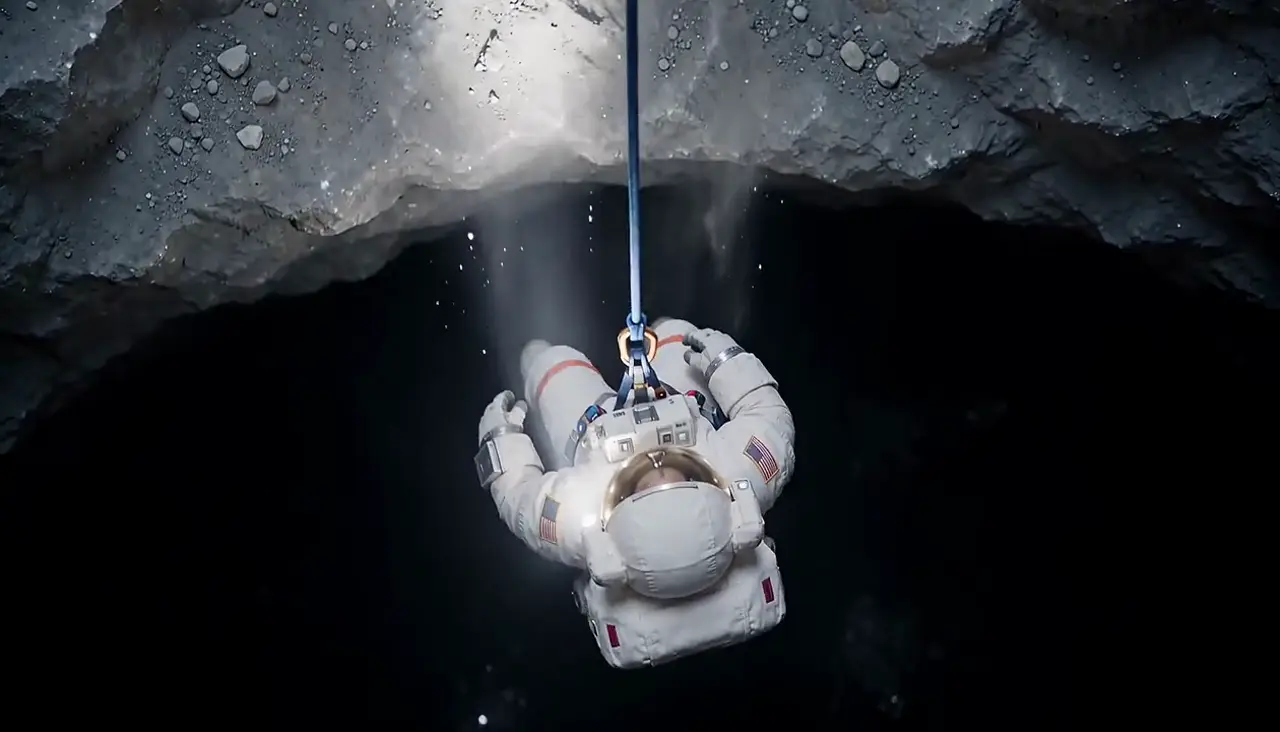
An astronaut in a white suit is lowered on a tether into a dark lunar cave

Shot previews before a shoot

Directors and effects teams can block out a sequence before committing to it: the camera path, the pacing of the action and the sound cues all play back at real length. Rough footage uploaded as a reference video can indicate the motion you want.

FAQ

MAGI-2 on EIMG: common questions

Short answers about the model, its limits and how credits work on EIMG.

What is MAGI-2?

MAGI-2 is a video generation model that creates footage and synchronized audio together, up to 30 seconds per clip. On EIMG it works from text, from a first and optional last frame, or from image, video and audio references.

What lengths and resolution can I choose?

You can choose any whole number of seconds from 4 to 30; the default is 5. Every video is delivered at 1080p, whichever aspect ratio you pick.

Can MAGI-2 videos include speech and sound effects?

Yes. Audio is on by default and can include dialogue, effects, ambience and music; write spoken lines in quotation marks in the prompt. Turning audio off does not change the price.

Which references can I upload, and what are the limits?

Reference mode accepts up to 10 images, 5 videos and 5 audio clips, and you can mix them. Each video or audio clip must be 2–30 seconds long, with no more than 30 seconds in total per type. References guide appearance, motion and sound; they are not spliced into the output.

Can I set the first and last frame?

Yes. Image-to-video mode takes a first frame and an optional last frame, and MAGI-2 generates the motion between them.

Which aspect ratios are available?

Text-to-video and reference mode offer 16:9, 9:16, 1:1, 4:3, 3:4 and 21:9, while first- and last-frame mode drops 21:9 and adds Auto, which follows the shape of the first frame. Every ratio is rendered at 1080p.

How many credits does a MAGI-2 video cost?

MAGI-2 costs 33 credits per second of output: 165 credits for 5 seconds, 330 for 10 seconds and 990 for 30 seconds. References, aspect ratio and audio do not change the price.

What happens to my credits if a generation fails?

Credits for a failed generation are refunded to your balance automatically. You can then adjust the prompt or inputs and run it again.

Where do I find my finished videos?

A finished video appears in the workspace and is saved in My Creations under the MAGI-2 Video tab, so you can come back to it later. Generation can take several minutes.

Can MAGI-2 edit or extend a video I already have?

Not in the EIMG workspace, which creates new clips only. To carry over the look or movement of existing footage, upload it as a reference video in reference mode.

Plan the scene, then let MAGI-2 render it

Write the beats, add references if you have them and pick a length up to 30 seconds. Every result is saved to My Creations.

Create a MAGI-2 videoOpen My Creations
EIMG AI logoEIMG AI

Create Stunning Images with AI

Product
  • Pricing
  • Blog
  • FAQ
  • Partners
Other Services
  • Nano Banana Pro
  • Nano Banana 2
  • Nano Banana 2 Lite
  • Veo 3.1
  • Seedance 2.0
  • Gemini Omni
  • Sora 2
  • Prompts
  • AI Shorts Studio
  • YuE2
Legal
  • Cookie Policy
  • Refund Policy
  • Privacy Policy
  • Terms of Service
Company
  • support@eimg.ai
  • AITOOLVERSE LTD
  • Office 15761 Initial Business Centre, Unit 7 Wilson Business Park, Manchester, England, M40 8WN, United Kingdom
© 2026 EIMG AI All Rights Reserved.•@Aitoolverse
Stripe ClimateContact